How to check DualSense compatibility before you play
Check your device, your connection and the controller features supported by the individual game.
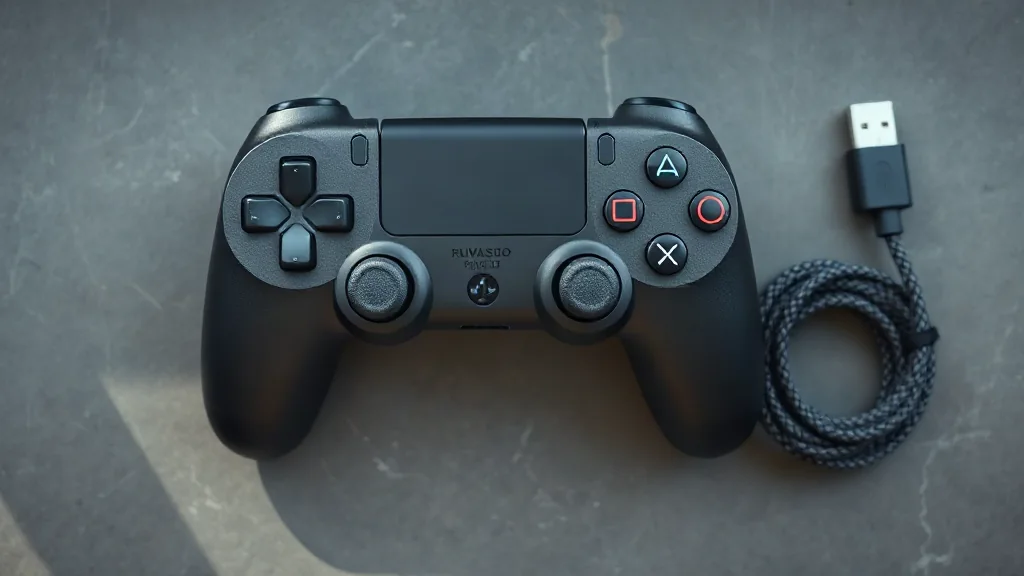
Start with the device you want to use. DualSense connects to supported devices via Bluetooth or USB, so check which connection your device supports. If you move the controller between systems, repeat the check for each one. Keep a USB cable within reach if you plan to use features that depend on a wired connection.
Then look up the individual game. Controller features vary by title, so find out whether the game supports the specific feature you want before settling on a connection. On PC, haptic feedback requires USB in supported games. If that is your priority, confirm the game’s haptic support and connect over USB. If wireless play matters more to you, check Bluetooth compatibility for your setup and review the game’s controller information.
Browse PC controllers on Amazon UK